Team Fortress 2

Team Fortress 2

183 ratings
Creating your first TF2 map
By tung tung sahur rule 34
This is a guide for people who want to create their own maps. A beautiful Japan-themed map? Hightower but it's textured with pictures of Shrek? All of those can be made using Hammer. But before you would try to do these, you must learn the absolute basics.
12
3
3
2
24
   
Award
Favorite
Favorited
Unfavorite
Chapter 1: Accessing Hammer
Hammer comes pre-installed with Team Fortress 2.

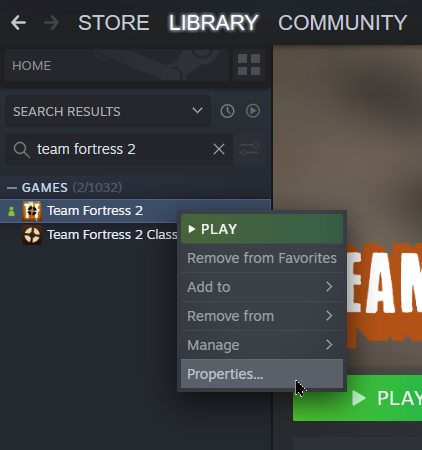
Step 1: Open Steam and go to your library

Step 2: Search Team Fortress 2, right click on it and select Properties.

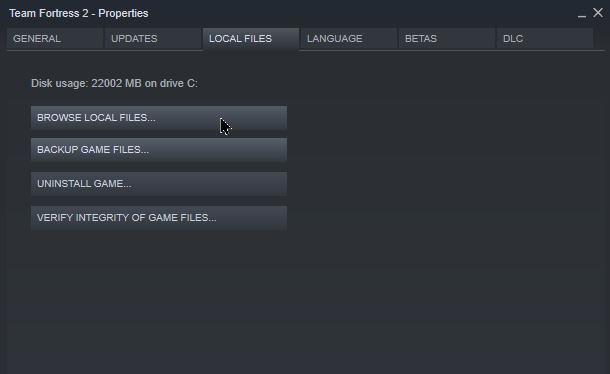
Step 3: Click on Local files and click on Browse local files


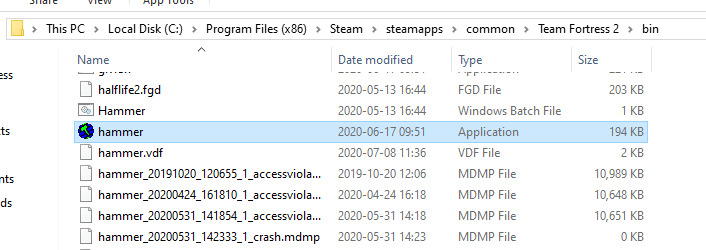
Step 4: Go to the bin folder and search Hammer.exe.


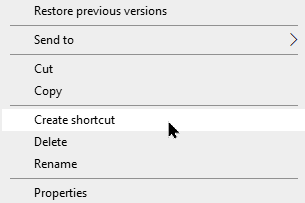
Step 5: Right click on the file and create a Shortcut.

Step 6: Place the Shortcut on your Desktop.


Once all of this is done, you can finally open the Hammer Editor.
Choose configuration for Team Fortress 2.


There's a heavily recommended mapping resource pack, which contains lots of re-texturing and hidden entities that will come in handy.
Download here[tf2maps.net]
Chapter 2: Understanding Hammer
Hammer is not an easy tool to use and can cause some annoyance easily. However, once it's learnt, it's extremely fun to use.

Once you are in the program, go to the top left side of the window and click on File and then click on New.
Immediately after that, press CTRL + S to save your map. Don't put spaces in your map's name. You will have to do this a lot during the making of your map, because Hammer crashes a lot.

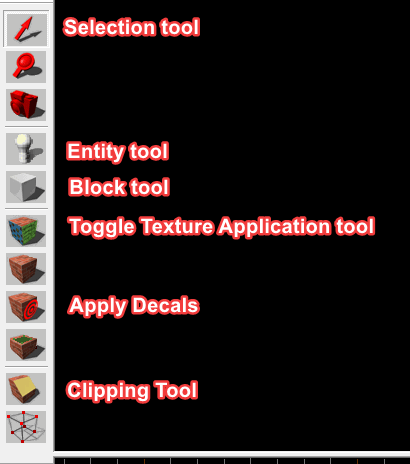
There are a lot of buttons on the screen. Here are the more important ones of the right side:


Selection tool: Select things to move, rotate and via doubleclick: edit them.

Entity tool: Places entities on the map.

Block tool: Places brushes on the map.

Toggle Texture Application tool: Able to create Displacements (bumpy grounds) and is able to modify already existing brushes' textures.

Apply Decal: Applies Decals on surfaces.

Clipping tool: Cuts brushes at certain angles.


The buttons at the top are self-explanatory once you hover your mouse over them. The following buttons are extremely important:

Smaller/Larger Grid: These will limit you on how large you can make your brushes.

Undo/Redo: Self-explanatory. It has its limits.


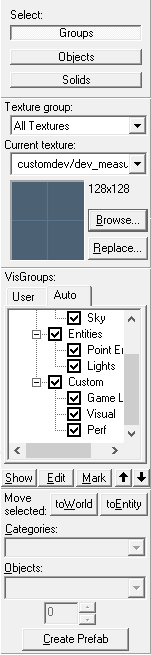
Right side:

Groups: Select the brush as an object while also selecting all the other members of that group the brush is in (if it's in any).

Objects: Select the brush as an Object. That means you can edit its values if it's a Trigger for example.

Brush: Select the brush as a Brush, which means you won't be able to edit it. If you copy paste it while this is turned on, you won't copy the values of that brush.

Browse (texture): Opens up the Texture browser tool.

Visgroups: You can toggle some types of brushes and entities to make them disappear. Useful when your map is cluttered with Triggers.

toWorld: If you turned the brush to an entity, you can revert the action by pressing this button.

Categories: Categorizes Objects.

Objects: When making a brush, you usually make blocks. There are special options under this tab, which you can use to create some funky brushes. Don't forget to set it back to block once you're done!

Create Prefab: You can select objects in your map to save them as a file. You can use that file to paste the objects in any map. (change Categories to Prefabs)


And lastly: the grid and the camera.
By default you have one 3D view and three 2D grid views: top, front and side. By default, one square in the grid represents 64 Hammer units.
Chapter 3: Creating your first map
Now that you have learnt the basics of the Hammer UI, you can finally create your first map. Trust me, it'll be amazing.

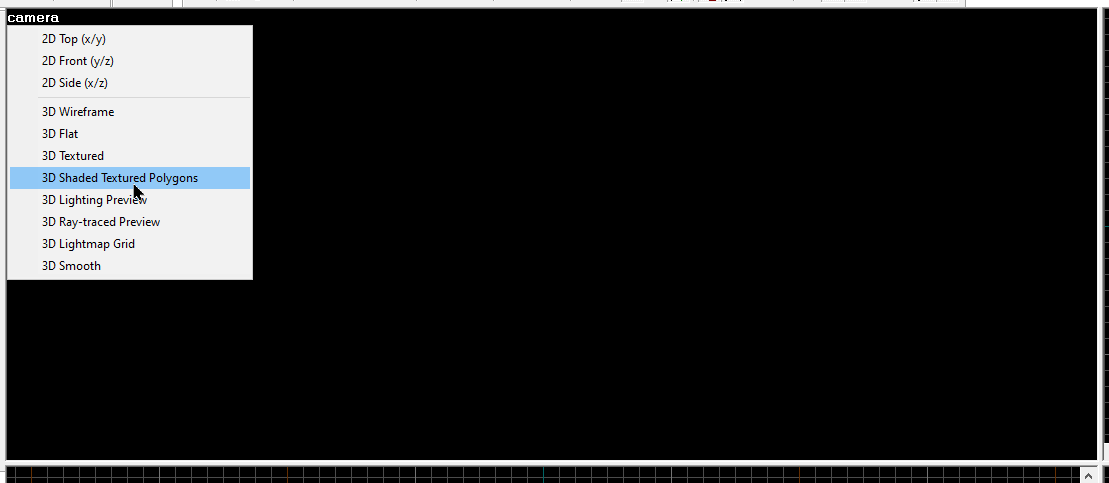
First of all, you need to setup your camera.
Go to the black box on the left and you should see a white text that says camera. Click on it and select 3D Shaded Polygons. This will give textures to your brushes in the editor, so you can actually see what will appear in-game.


Let's select a proper texture for your brush.
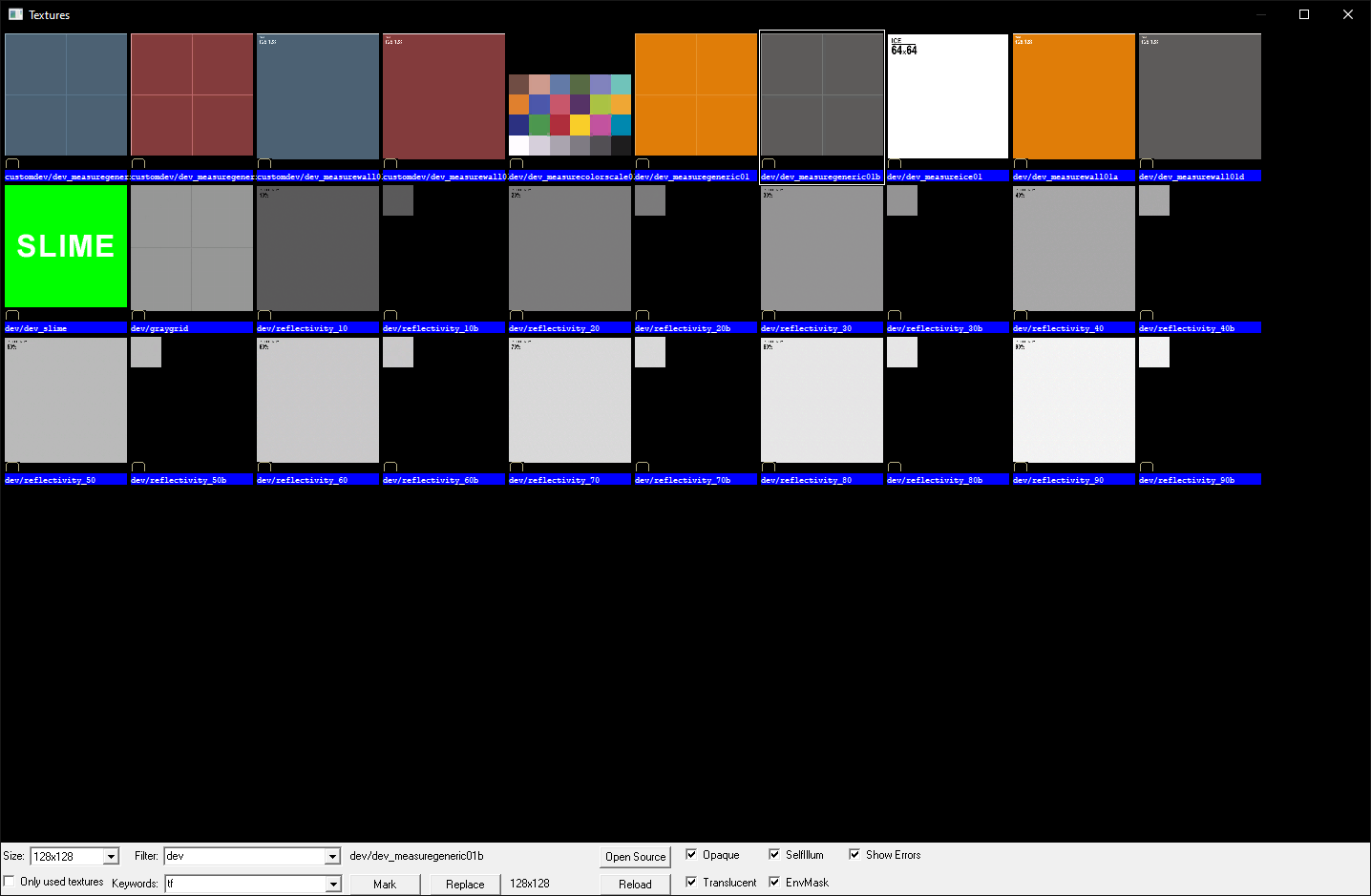
Go to the right side and click on Browse. In the keywords, type in "tf" without quotas. Now your browser will only bring up textures from TF2. In the Filter box, you can type in various types of texture names, for example: dev, wood, floor, concrete, etc. Once you found your desired texture (make sure it's a normal texture and not a tool texture!), simply double click on it to select it.


Now, you will create your first brush.
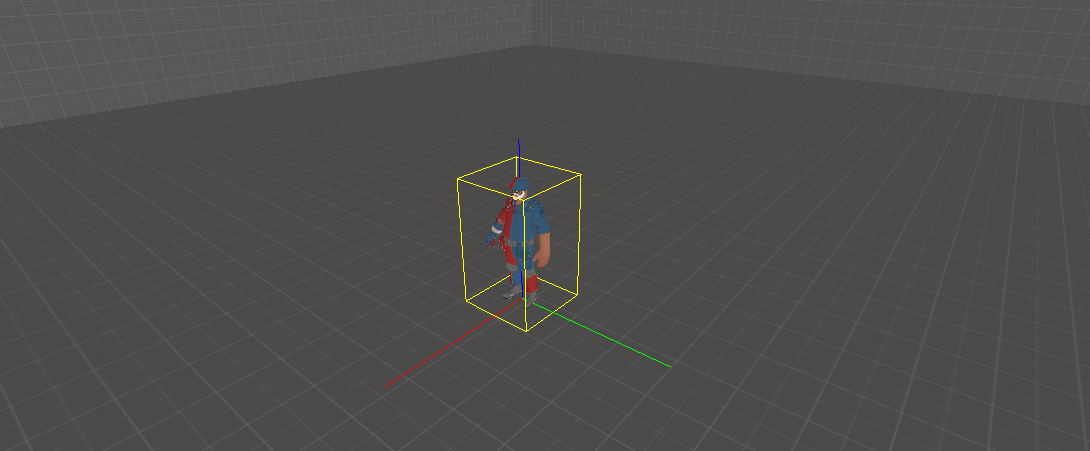
Select the Block tool. After that, click and drag on the grid. As a reference, a Spy is 22 hammer units long, 41 hammer units wide and 87 hammer units tall.


Your brush is not done yet.
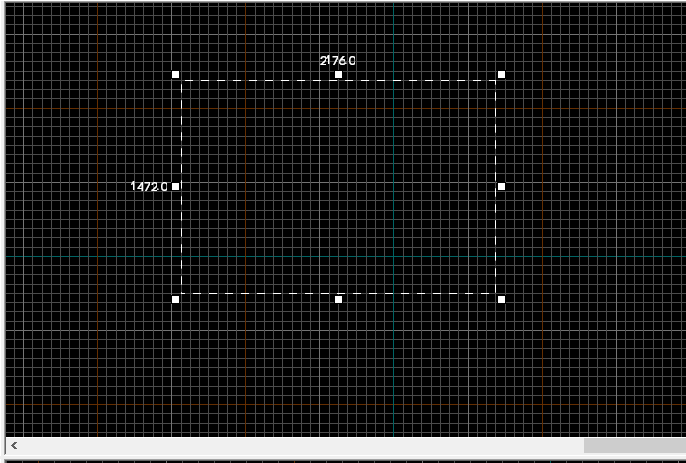
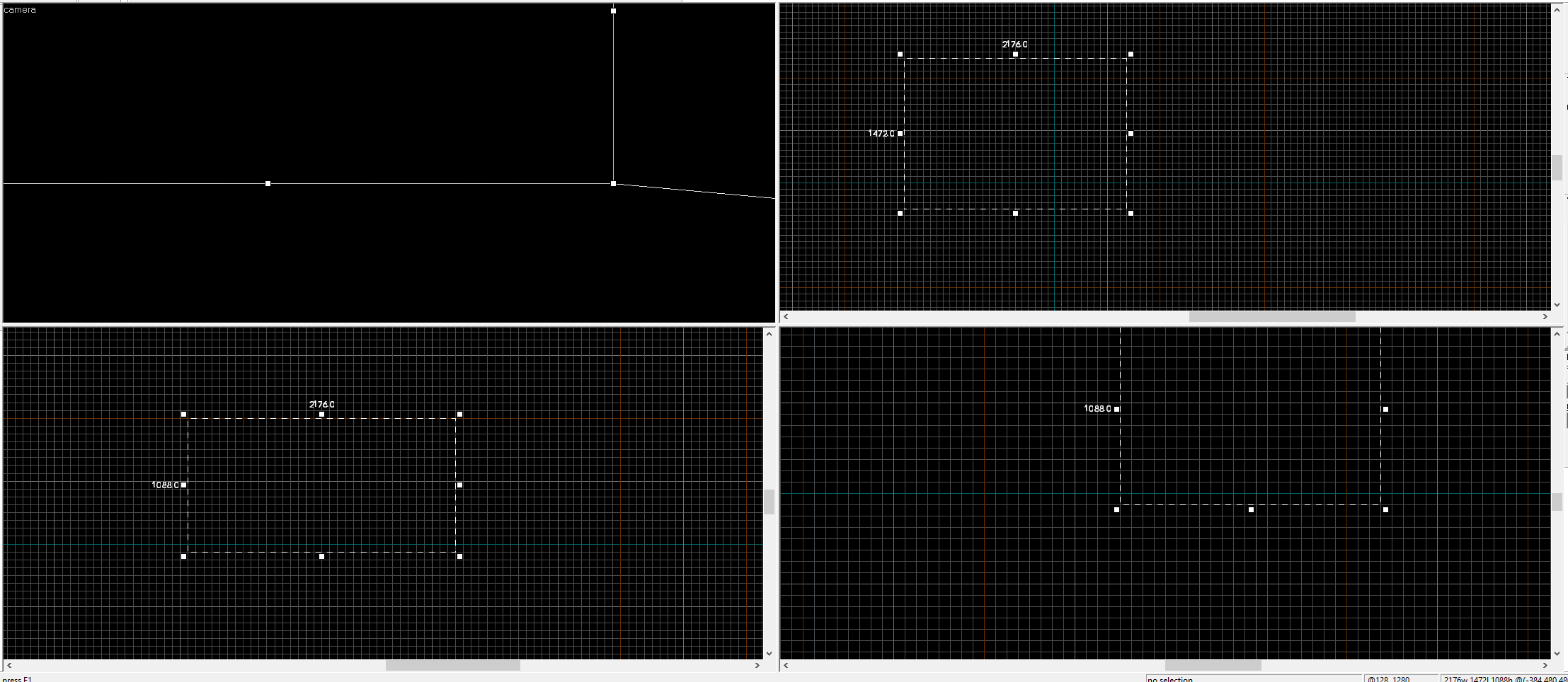
It's highly likely that your brush appears to be a bit thin on the other cameras. Click on the Selection tool and drag it around using the white squares to make it look like a rectangular box on all cameras. Scroll in and out if necessary. If you misclick, your brush will disappear. Simply repeat the process and be more careful next time.


Now it should look like this.
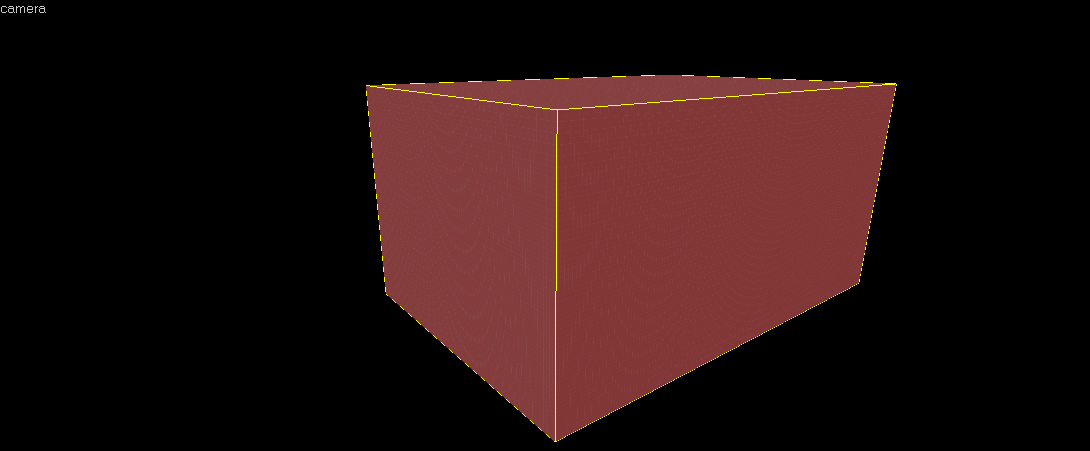
If you no longer want to make changes to it, press Enter to create your brush. Congratulations! You have made your first brush. Don't forget to press CTRL + S to save your progress.

But... you can't quite see your brush just yet. Probably.
Place your cursor in the camera's section. Press Z to toggle camera mode. Now you can use WASD to move around and view your map. You can also scroll in and out to change the field of view.


Now it's a great time to talk about the outer space of your map.
Entities and objects can't exist there, brushes can. If an entity or object is touching the void, it will cause a leak. If this happens, the consequences are: map is unplayable (literally), map becomes extremely laggy, objects and entities stop working, skybox becomes broken.

To identify a leak, you can always check the compile log, which will kindly warn you about the leak.
You can find the leak by going to the top, clicking on Map and clicking on Load Pointfile. This will show a line that connects the leaked entity and the void.

After you have made your first box, you may have realized that there isn't any empty space in the box.
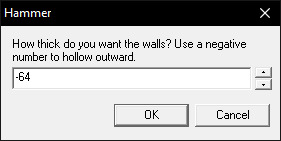
You need to make the box hollow. Once you've made sure that your brush is selected, go to the top and click on Tools, then click on Make Hollow.


This small window popped up. The value represents the thickness of the wall.
I usually set it to -64 or -32. This is useful, since entities can exist in brushes and you can place your props lower than the ground without causing a leak.

You can go inside your box now.
It's a bit empty, but it will do it for now.

Now, you will place your first spawnpoint.
To do so, go to the left side and click on the Entity Tool. Click somewhere inside your box. Make sure your spawnpoint is not inside any side of your box! If it is, move it around using the Selection tool.


Click on the Selection Tool, double click on the Entity and then we can edit the properties of the spawnpoint.
You can set the team to Blue, Red or even Any. Set it to Red.

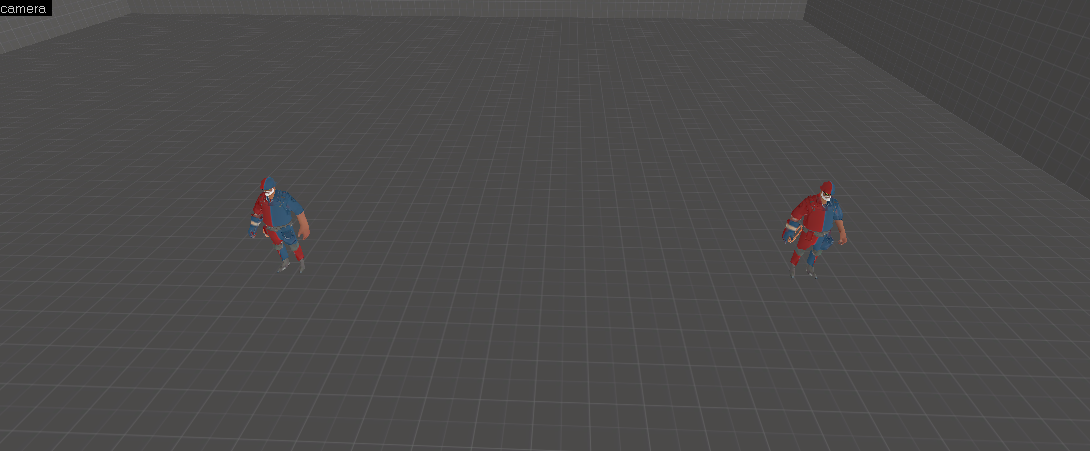
Now create another spawnpoint and set the team to Blue.
Now you have 1 spawnpoints for each team, which means that the opposite teams won't spawn inside each other.


Your map is playable. Try it!
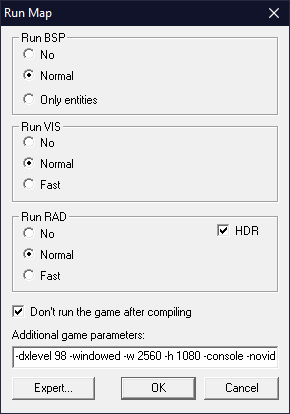
Press F9 to bring up the compiler.

Recommended settings:

-windowed: Launches the game in Windowed mode.

-w 1920 -h 1080: Your screen's resolution. By default, Hammer launches TF2 in a horrible resolution, so I highly recommend using this launch option. If your resolution differs from the given resolution, use that instead.

-novid: Skips Valve intro.

-console: Gives access to the developer console.


Click on OK.
Your map is compiling right now, which means that it's converting your save into a playable TF2 map. It shouldn't take too long, since your map isn't heavily detailed and it doesn't contain hundreds of entities.

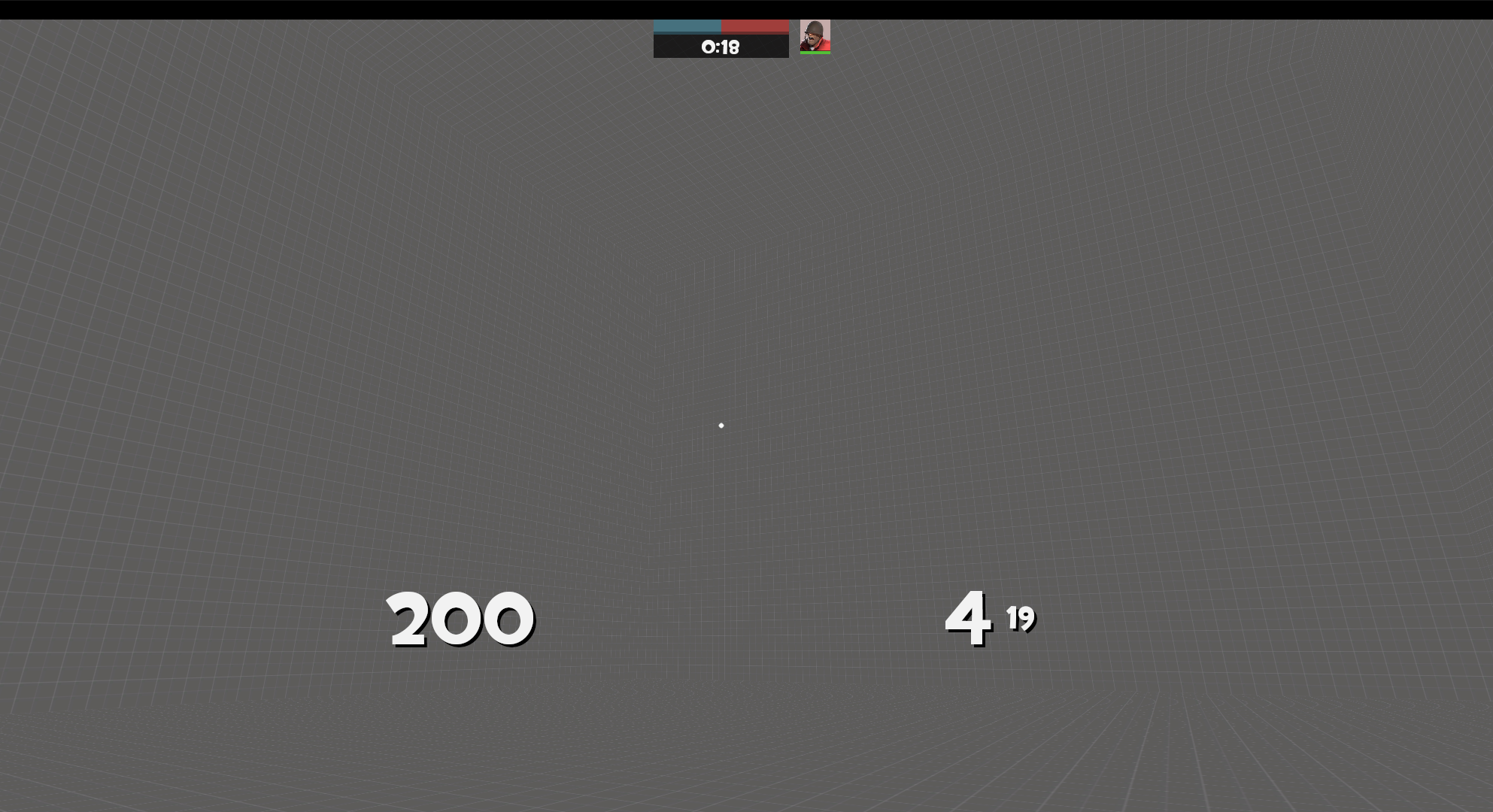
Once your game launches, you can see your map in-game as well.
It's not as detailed as official maps, but it's a start. In the next chapter, you can learn about making your map look and function more appealing anyway.


You can find your map in your Team Fortress 2 folder at tf/sourcesdk_content/tf/mapsrc. Use your library again to browse TF2's files.
In case you want to save it as a memory or something... There are a bunch of files in that folder, but the one you want is your map in bsp format. This is the map format TF2 uses.

Other files you might find there:

.txt: Compile log

.prt: Contains information about Portals. Used to calculate visibility.

.pts: Contains information about Leaks.

.vmf: Map file used by Hammer.

.vmx: Backup version of the .vmf file. You can open it via Hammer by changing the format back to VMF.

Chapter 4: Enhancement
In this chapter, you will learn how to do basic features all maps have, such as lights, overlays and skyboxes.

Let's start with the skybox.
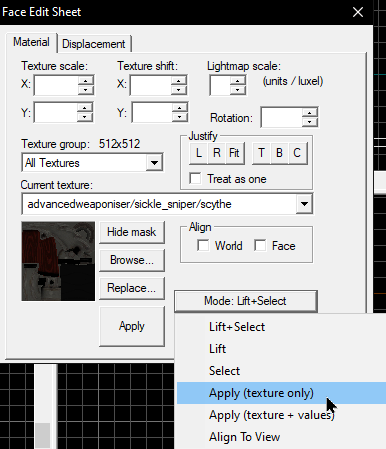
Go to the left side and click on the Toggle Texture Application Tool while nothing is selected. It will bring up a window. Click on the Mode button and choose Apply.


Once this is done, you need to find the skybox texture.
Click on Browse and type toolsskybox in the filter section. You want to choose the blue (3D) skybox. Double click on it.

Inside your box, click on the ceiling.
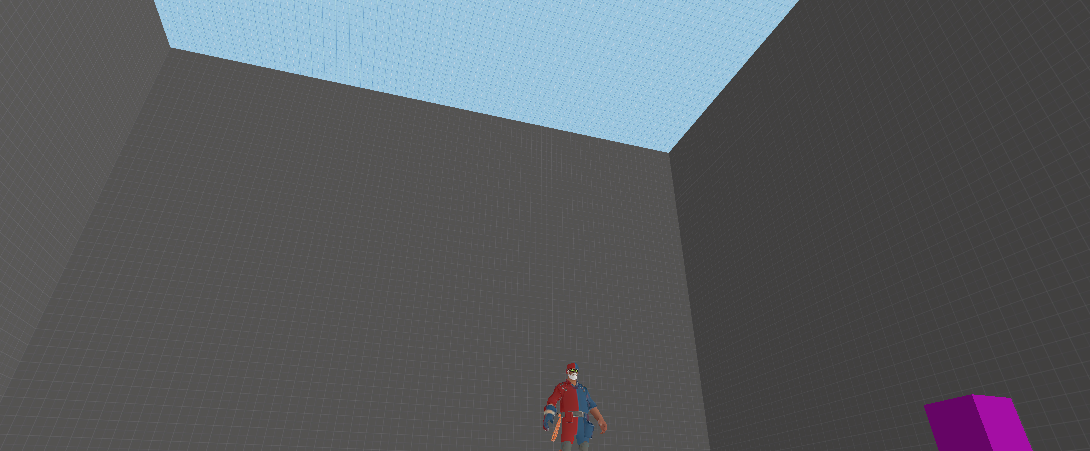
The skybox texture is now applied and you will be able to see the sky once you look up.


If you want to choose a different skybox, you can do it by searching skybox in the Texture Browser.
You need to copy the name of the skybox and remove the last 2 letters to get the correct name of the skybox texture. For example: sky_dustbowl_01.
NOT: skybox/sky_dustbowl_01 or sky_dustbowl_01rt
Once you got the correct name, go to the top and click on Map and Map Properties. Replace Skybox Texture Name with your desired texture's name.

The map still doesn't have any lights. Let's fix this.
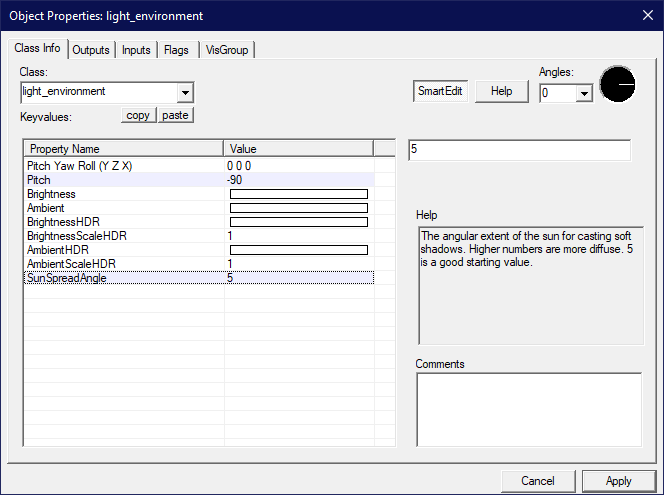
Click on the Entity Tool and place an entity in your map. Double click on it with the Selection Tool and under Class, search for light_environment. Click Apply.


There are a couple keyvalues here that you might want to look into:

Pitch Yaw Roll: The first number is the important here. Make it the same as Pitch.

Pitch: The angle the sun is casting light towards your map. -90 is straight down and 0 is perfectly horizontal. For tutorial purposes, use -90.

Brightness: There are 4 values, first 3 are corresponding for the color values and the 4th one is the actual brightness of your level. Be cautious with these options, since they can quickly change the overall mood of the level. For now, don't change brightness.

Ambient: Shadow color and brightness.

SunSpreadAngle: Makes shadows blurrier.

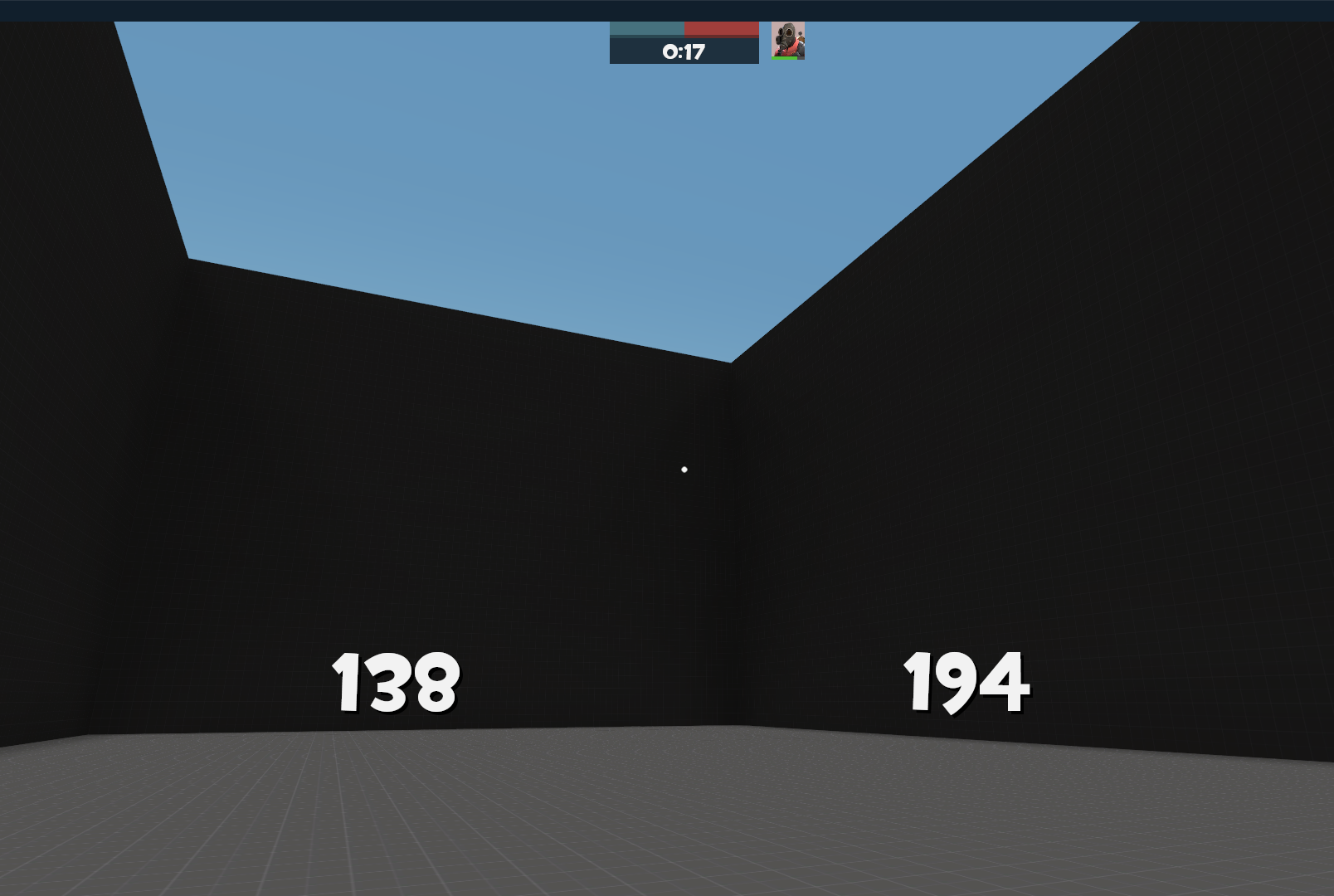
Try your map to check your progress.
It feels a bit more natural now.


Now for some props.
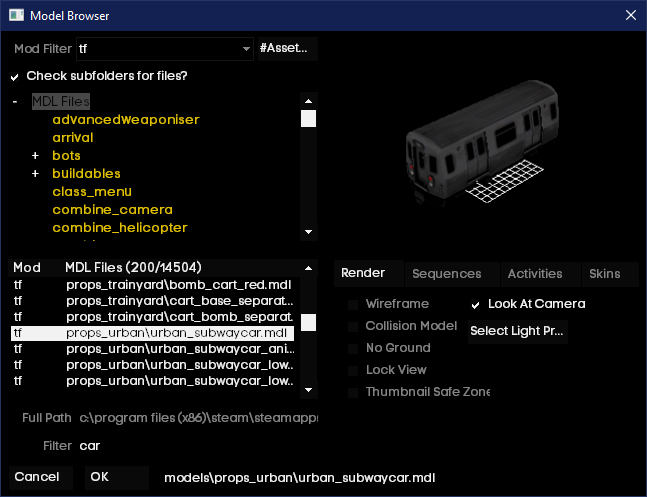
Click on the Entity Tool and click on your level. Using the Selection tool, double click on the Entity and search prop_static. Click Apply. Search for the World Model keyvalue and click Browse. Now you can search for some props. I'll place down a subway car.


Once you found your perfect prop, click OK, then click Apply.
You can now exit the menu. You also probably want to move the prop around a bit if it's conflicting with the spawnpoints. If you want to rotate it, click on the Selection Tool and click on the prop on the 2D grid. Hold the black circles to rotate it around. Change the grid size if you want to do smaller changes. You can go back to resize mode by clicking twice on the prop.


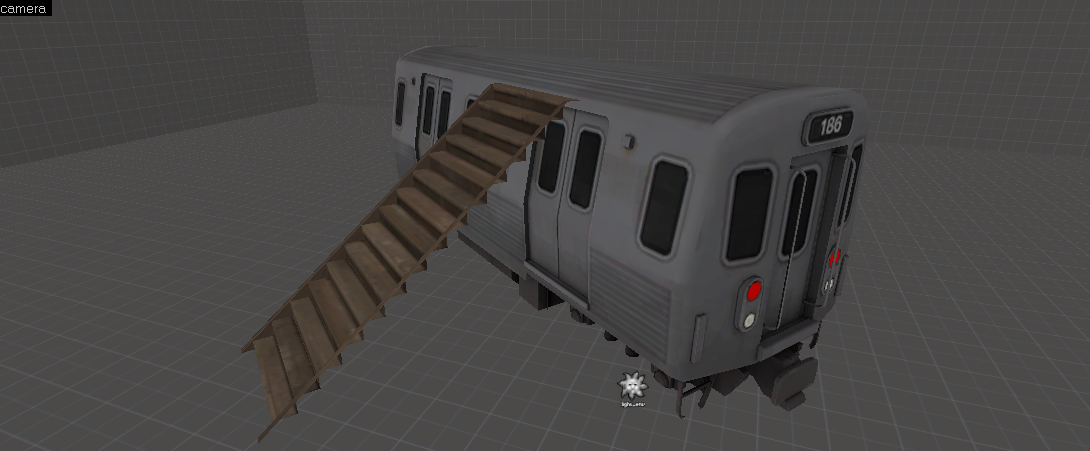
You can also experiment with props to see how they could interact with each other.
For example, I made this car climbable using these stairs.

You can't change classes yet without dying. Let's learn about triggers.
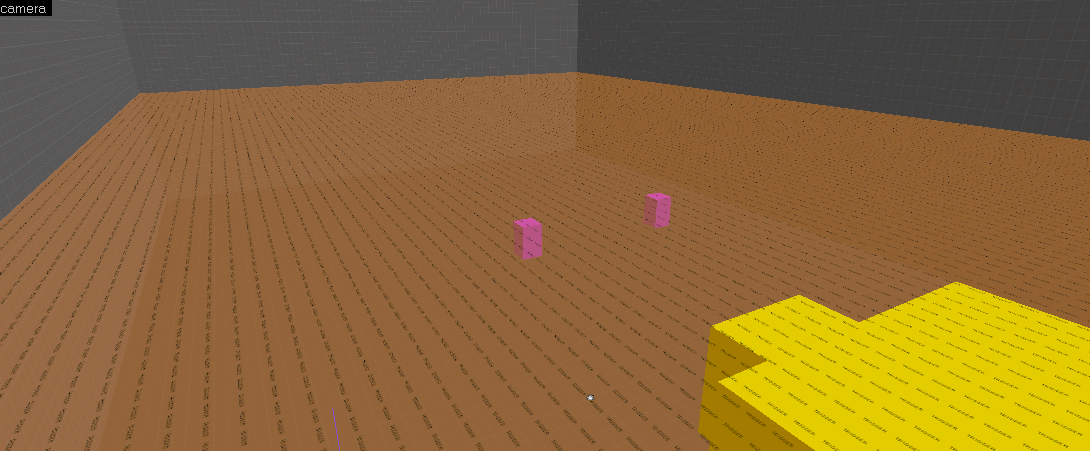
Trigger is an invisible brush that does something once you enter it. Search for the texture trigger in the Texture Browser and create a brush with it. Cover the whole ground with it.


Click on it using the Selection tool and press CTRL + T.
Now your brush became an Entity. Remember that Entities can leak! Under class, search for func_respawnroom. Press Apply. Now you can change classes in that area without dying.

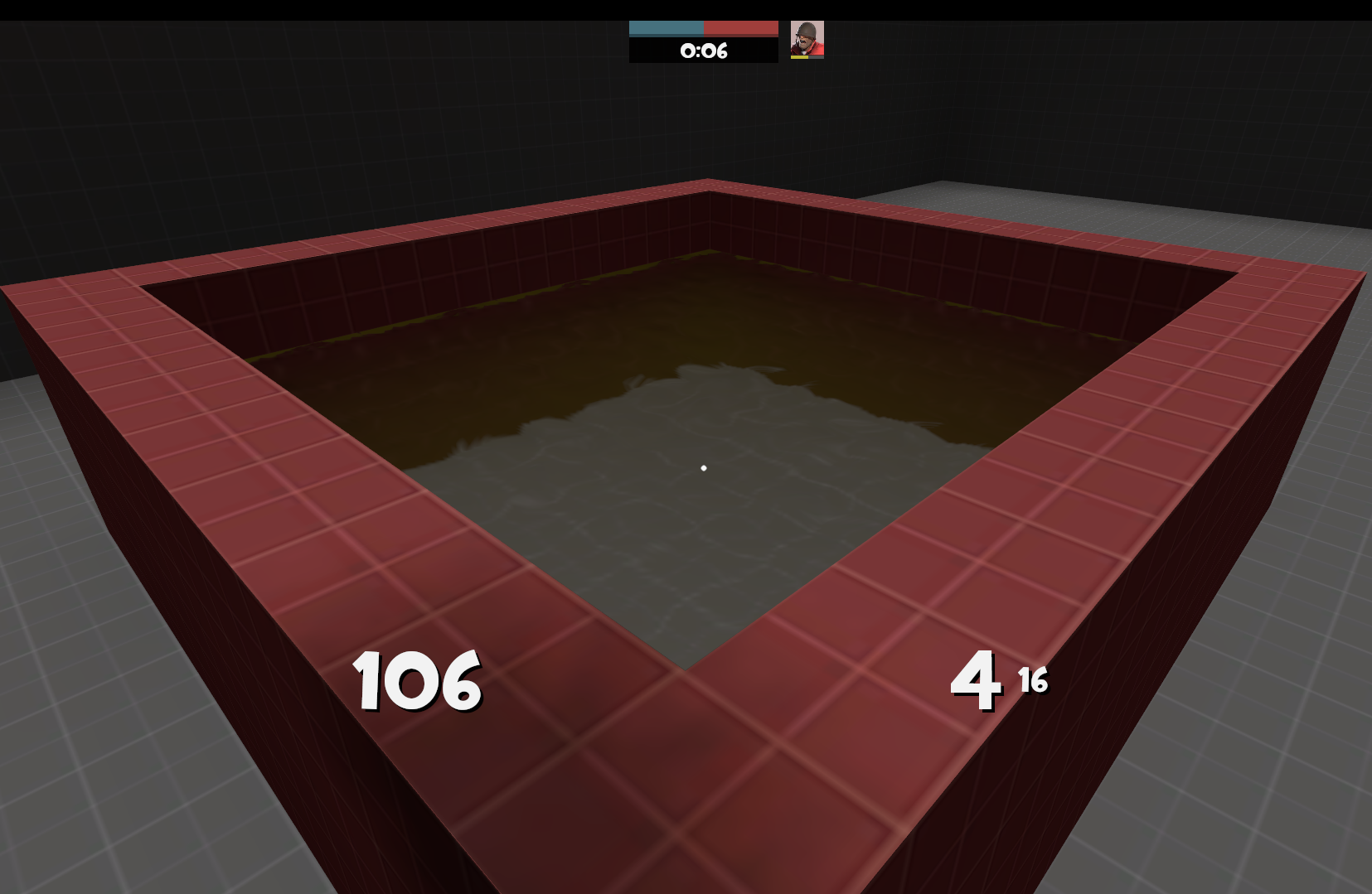
How about a swimming pool?
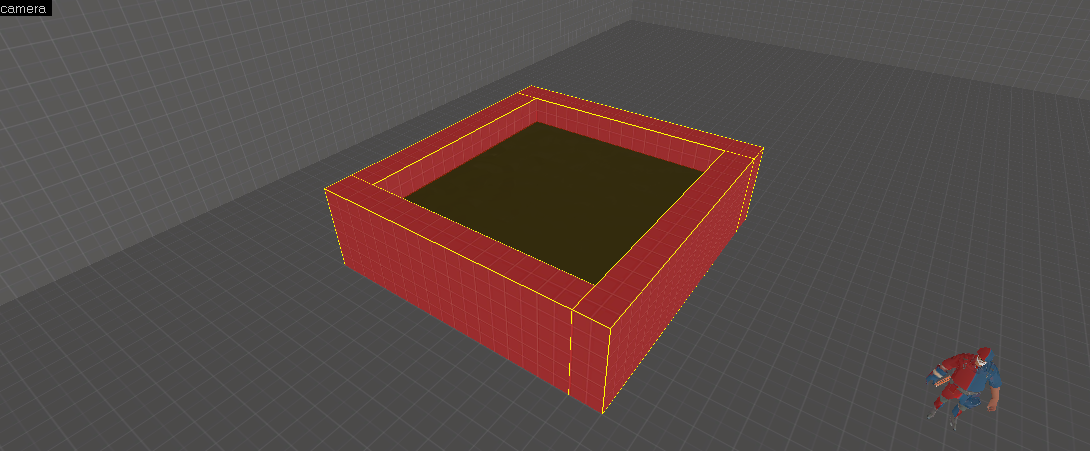
To make water, search for water in the Texture Browser. Create a brush using that texture. Don't forget to seal the water! It can't spill, but it looks better if it's not just floating in the air. Remember not to make overlapping textures!


I recommend trying out your new swimming pool.
If you can't reach it, try rocket jumping or put a stair prop there. Or build a parkour with props! Get creative. Doesn't it feel nice to sit in it and just relax? No? Well maybe you are not that type of person.


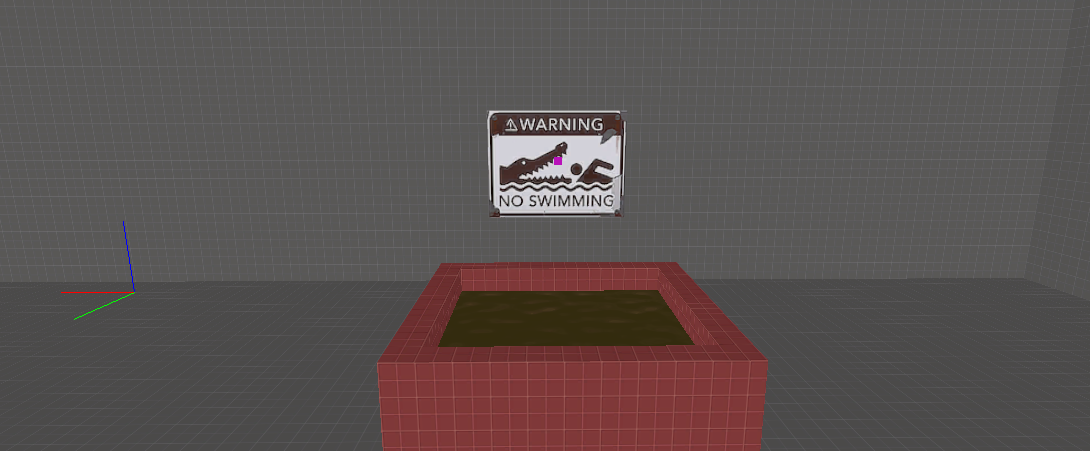
How about some decals?
Click on the Apply Decal tool and go to the Texture browser. There is no easy way of finding all decals, so what you should do for now is just search for signs. Click on the one you like the most. And now click on a wall to apply the decal there.


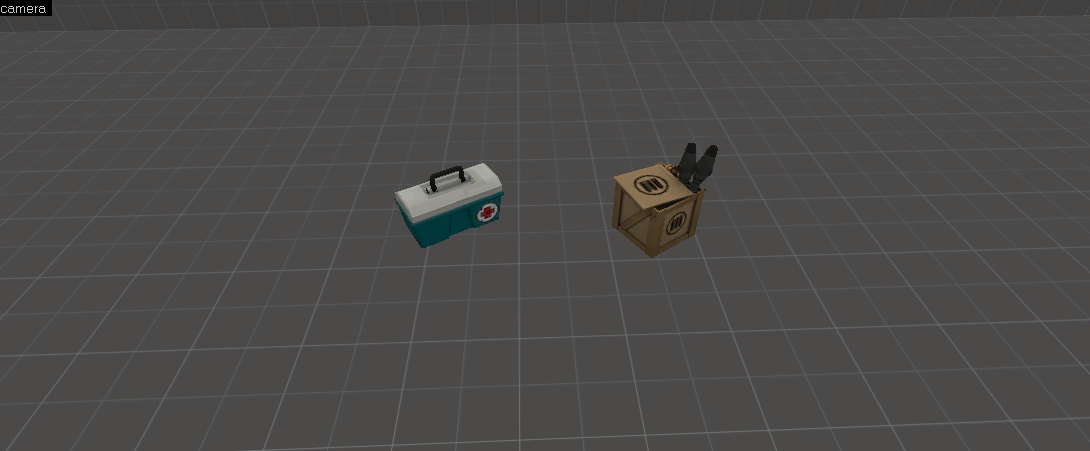
Ammo and Health. They are essential.
Click on the Entity tool and place down an Entity in your level. Double click on it and search for item_healthkit_full. Apply and exit. Now you have a health pack. Do the same, but instead of a healthkit, search for item_ammopack_full. You now have both an ammo and a healthpack.


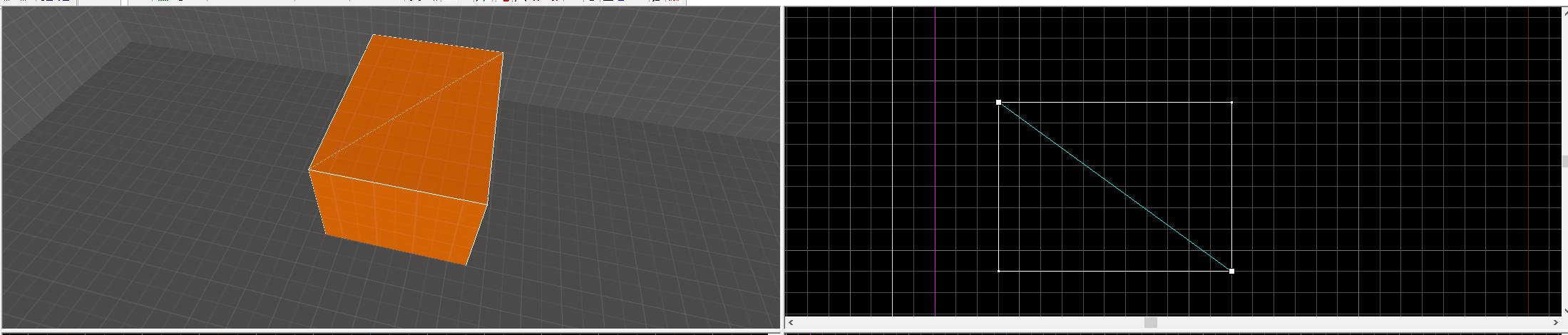
As a last touch for your level: let's cut things.
Place a brush in your map. Now select your brush and click on the Clipping tool. In the 2D grid, make a line along your brush where you want to cut it. By pressing the Clipping tool button continuously, you can select which side you want to be deleted (if any). The red side will be the one that will be deleted. To finalize your cut, press Enter. If you kept both brushes, you can now move them apart from each other.


Try your map and observe all the things you've done so far. It's amazing, isn't it?
It looks almost as good as Suijin!

You can upload your map to the workshop through TF2.
Click on the Workshop button, click on Maps and upload your map and the thumbnail and release it to the public, so they can observe what you've made. Well, if they choose to.
Chapter 5: Ascension
Hammer is all about learning. Nobody learns it by simply clicking randomly in it. There is a lot of documentation online, which I'll be listing here. Press CTRL + F to search for one specific thing. For example, search for King of the Hill to make a KOTH map!

Official Hammer Documentation site
Website dedicated to TF2 maps[tf2maps.net]
Mapper references
Compile error checker[www.interlopers.net]
3kliksphilip's tutorial series. Made for CS:GO, but lots of the things apply for TF2 as well.
UEAKCrash's map tutorial series
Optimization (video)
Optimization (documentation)
Leak
TF2 Entities
Tool textures
List of TF2 Particles
Input/Outputs
Making Prefabs
Browse Prefabs[gamebanana.com]
Creating Displacements
Advanced Shapes
Water texture comparision
Adding sounds
Custom sounds
Parenting objects
Trains
Cubemaps
Ropes
Custom texture
Soundscape comparison p1
Soundscape comparison p2
List of TF2 Skyboxes
3D Skybox tutorial
2D Skybox tutorial
Teleport
Rotating objects
Spinning objects
Trigger_hurt
Bomb
Design Theory
Creating a Spawnroom
Jump mapping resources[jump.tf]
Modifying respawn time
Adding menu photos
How to make Fire
Map introduction video
Halloween bosses
Dispenser
Sentry
Compiler & Errors
Func_detail
Gameplay Theory
Symmetry
Scaling
Clipping
Health and Ammo
Water
Setup Gates
Arena
King of the Hill
King of the Hill and Arena (video)
Capture point
CTF and other flag-type gamemodes
Control point Assault
Payload
Territorial Control
PASSTime
Player Destruction
Hunted
Domination
Keep-Away
Cyclic Capture Points
Dimensions
Face Edit Tool
Prop types
Grouping and VisGrouping
Lighting
HDR Lighting
Intermediate Lighting
Advanced Lighting
Curved Hallway
Angled Geometry
Complex brush creation
Physics
Lasers
Explosions
Sprites
Design: Spytech
Design: Dustbowl
Design: Sawmill
Puddy's resource pack[tf2maps.net]
Ultimate mapping resource pack[tf2maps.net]
Online (very) basic mapping tool. Just for fun.[toadstf.github.io]
TF2 Workshop
Developer console commands
34 Comments
Mar 3 @ 8:29am 
It doesn't work on linux apparently, according to some comments


BUT MY PROBLEM is that it just doesnt finish compiling
Feb 28 @ 12:50pm 
nothing did what this said it would, i couldn't even texture a box
Aug 31, 2025 @ 1:25pm 
i dont have an area that says local files just downloaded files
Jul 22, 2025 @ 11:33am 
My game compiles and tf2 just doesn't open, what happend?
Jun 28, 2025 @ 6:52pm 
rhall and Jonahbro64, it's likely due to Hammer being set to run the game executable as hl2.exe instead of tf.exe, which hl2.exe got replaced by tf.exe since an update in April 18th, 2024, so the solution is to change the option that makes Hammer run hl2.exe to tf.exe. The same problem likely exists for other games that run on the Team Fortress 2 engine branch like Counter-Strike: Source, Day of Defeat: Source, Half-Life 2: Deathmatch, and Half-Life Deathmatch: Source.
Jun 28, 2025 @ 6:44pm 
dehydration, I don't think Team Fortress 2 comes with Hammer on Linux as I couldn't find it in the TF2 Linux client depot on SteamDB, but I found Hammer in the TF2 Windows client on SteamDB.
May 26, 2025 @ 12:46pm 
Uhhhh- I can't even find hammer in bin. Does this not work on linux?
May 3, 2025 @ 7:20pm 
game won't run
Nov 21, 2024 @ 7:41am 
"where to download hammer" brother is literally step 1
Nov 13, 2024 @ 1:34pm 
i tried run map with the stuff listed on your thing, and it wont run the map