RetroArch

RetroArch

Not enough ratings
Flash Games on Steam Deck / Bazzite: The Complete Setup Guide (Ruffle + Steam UI)
By ThatGVguy
A fast, no-nonsense guide to playing classic Flash games (Alien Hominid, Fancy Pants, Mario 63) directly from your Steam Library. No complex scripts, just pure nostalgia! :D

Includes:

Installing Ruffle (The modern Flash emulator).

The fastest way to find safe .swf files.

How to make Steam launch the game directly.

How to add multiple games (even if Ruffle disappears from the list!).

Controller Mapping (Steam Input) so you don't need a keyboard.

Let's get those childhood memories back!! :D
   
Award
Favorite
Favorited
Unfavorite
Step 1: Getting the Emulator (Ruffle)
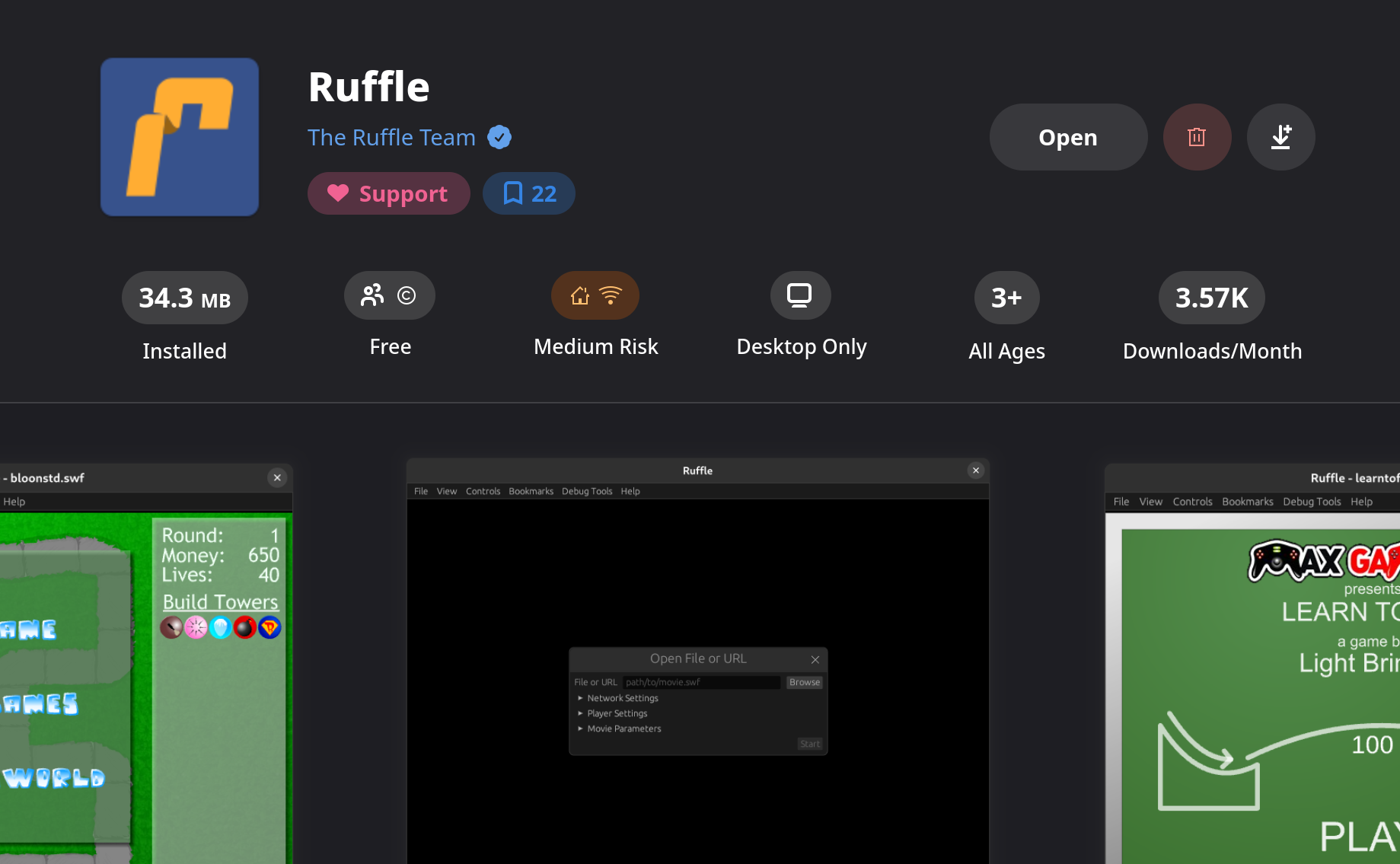
First, we need the engine to run these bad boys. We are using Ruffle (the best open-source Flash emulator) via Flatpak.

Switch to Desktop Mode on your Bazzite/Steam Deck.

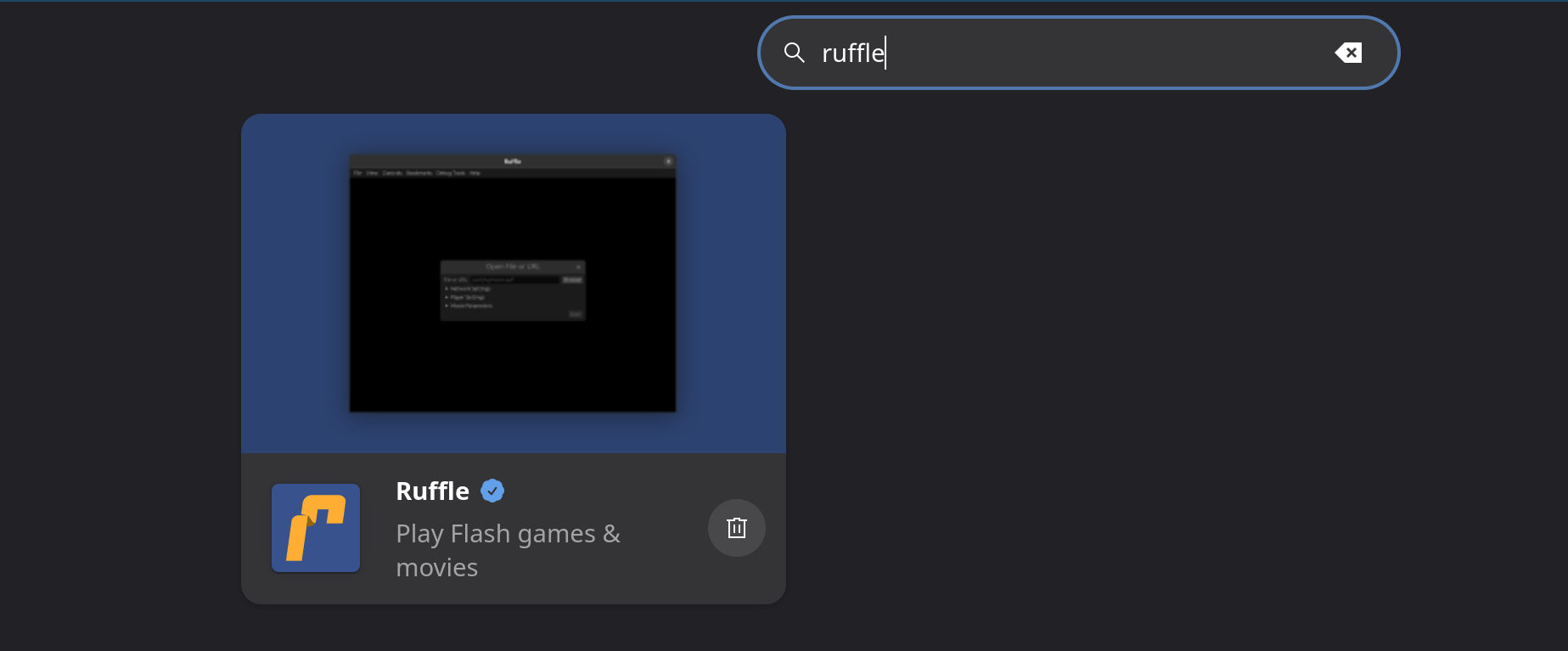
Open the Discover Store (the blue shopping bag icon).


Search for Ruffle.


Click Install.

Step 2: Hunting for Games (.swf)
Flash games are singular files ending in .swf.
Here is the fastest way to find them safely:

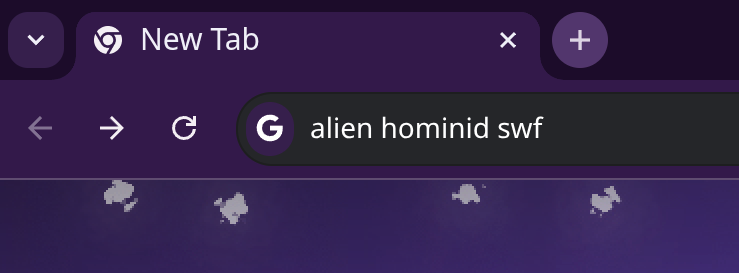
Open your browser (Firefox/Chrome).

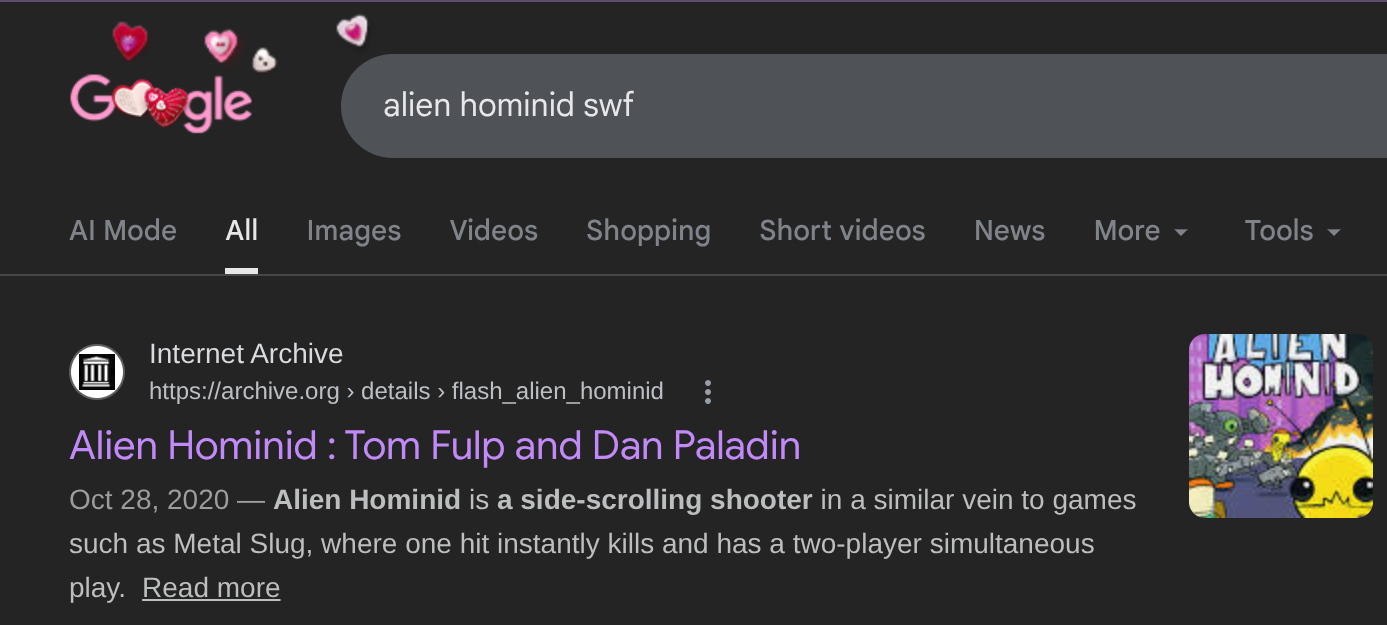
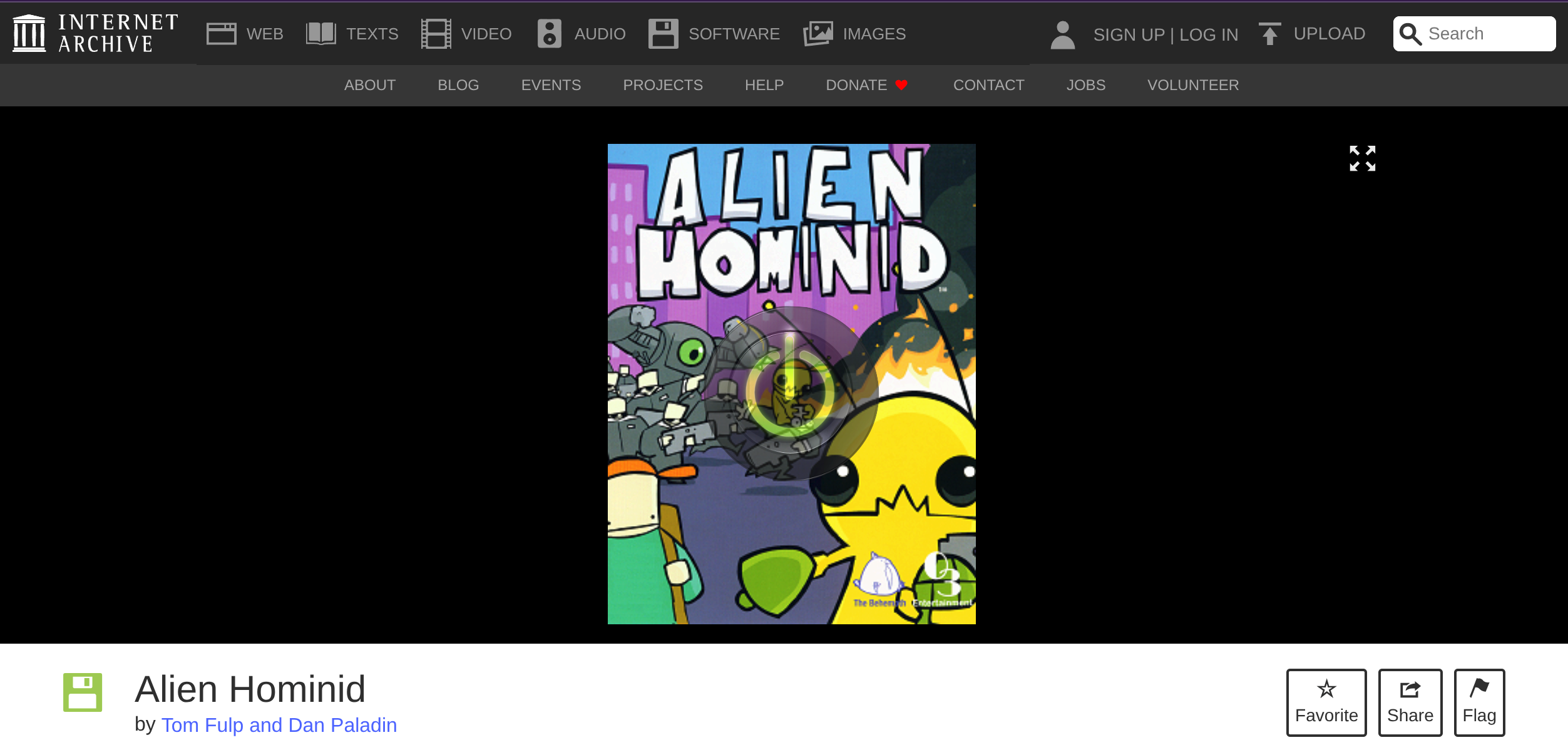
Search directly for the game name followed by "swf" (e.g., Alien Hominid swf).


Look for the result from archive.org (Internet Archive) and click it.


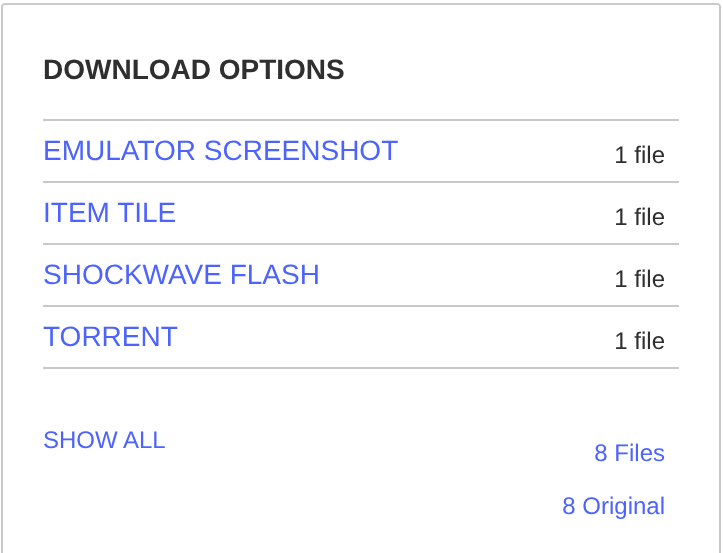
On the right side, look for Download Options and click Show All.


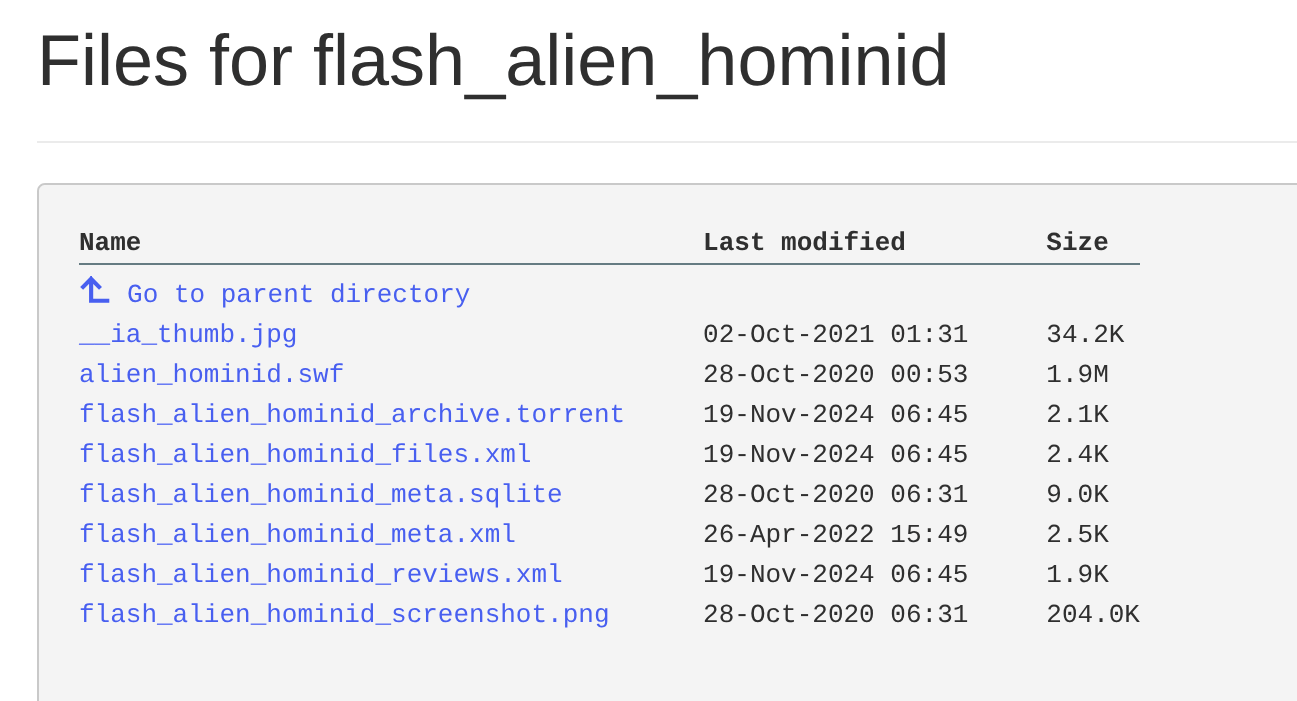
Clicking "Show All" reveals the actual game file without the extra junk! :D


Find the file ending in .swf in the list and download it.

Step 3: Organizing Your Library
We need a clean place to store these files so Steam can find them.

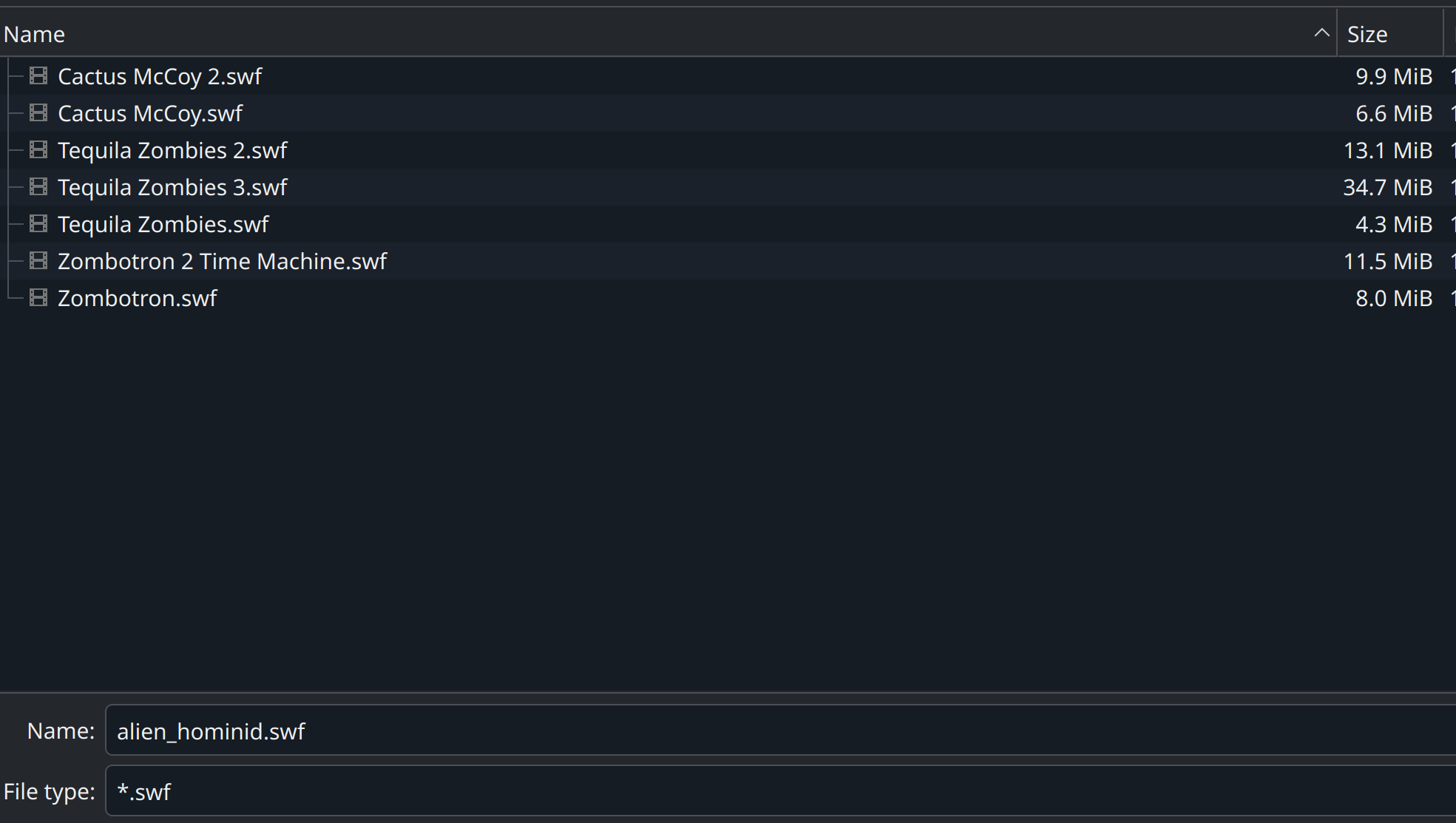
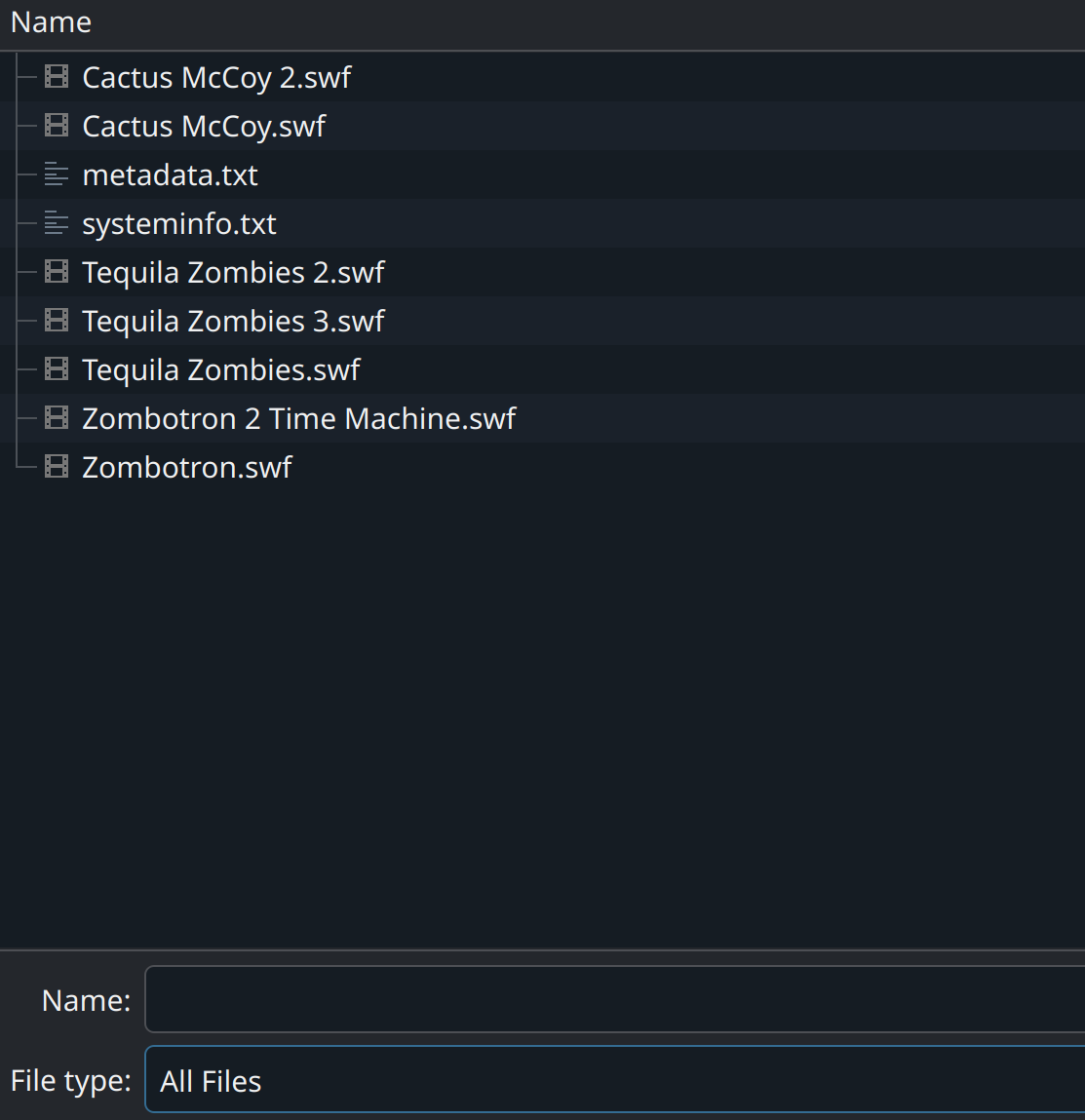
Open your File Manager (Dolphin).


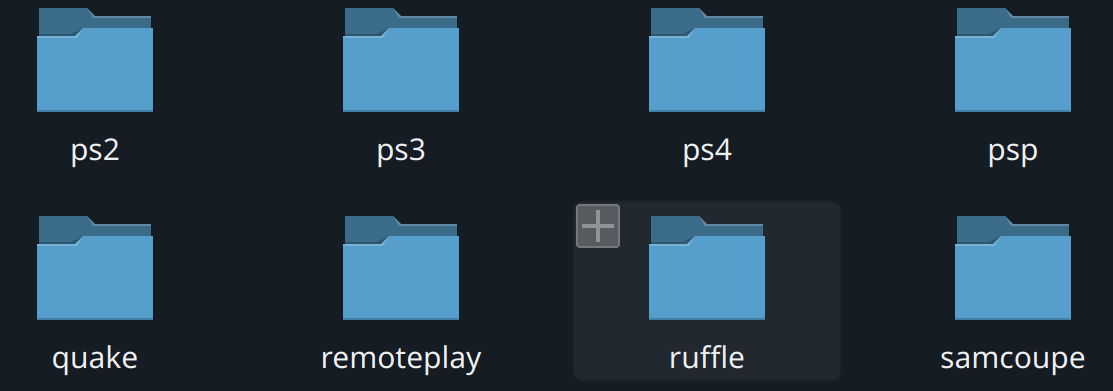
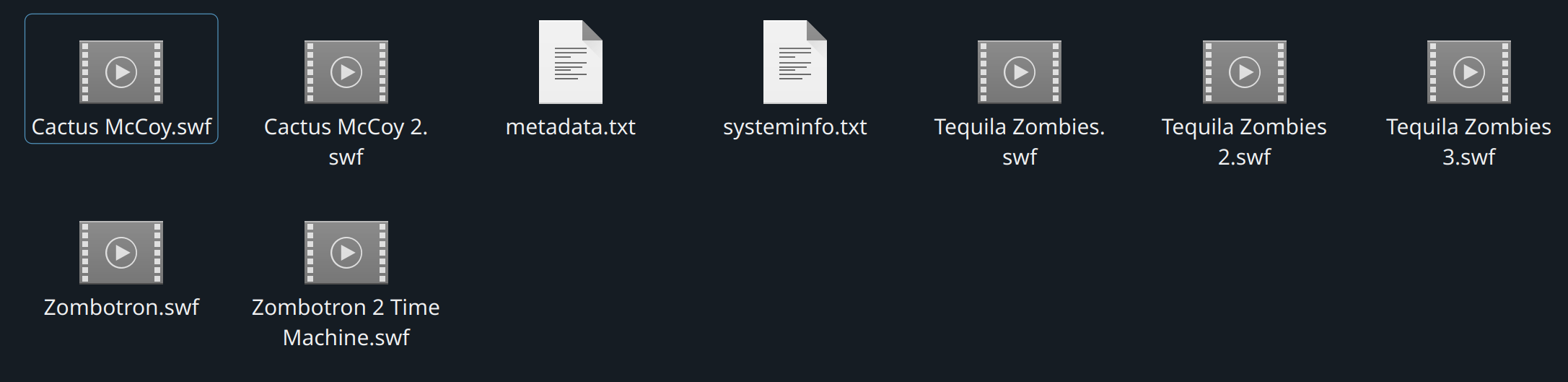
Create a folder named Flash Games (or ruffle) wherever you prefer.


Personally, I keep mine inside my EmuDeck ROMs folder to keep everything organized together! :D


Move your downloaded .swf files inside.

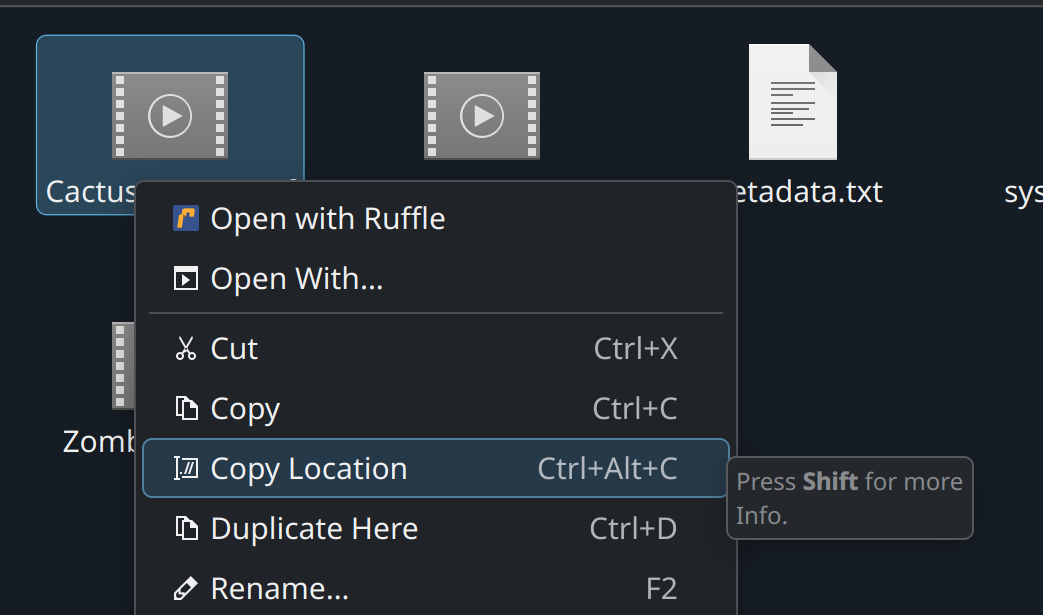
Copy Location:
Right-click your game file (e.g., Cactus McCoy.swf) and select Copy Location.


Keep this in your clipboard! We need it for the next step.
Step 4: The Steam Setup (First Game)
This is where the magic happens. We are going to tell Steam to use Ruffle to open that specific file.

Open Steam (stay in Desktop Mode for now).

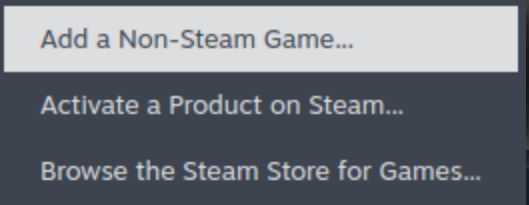
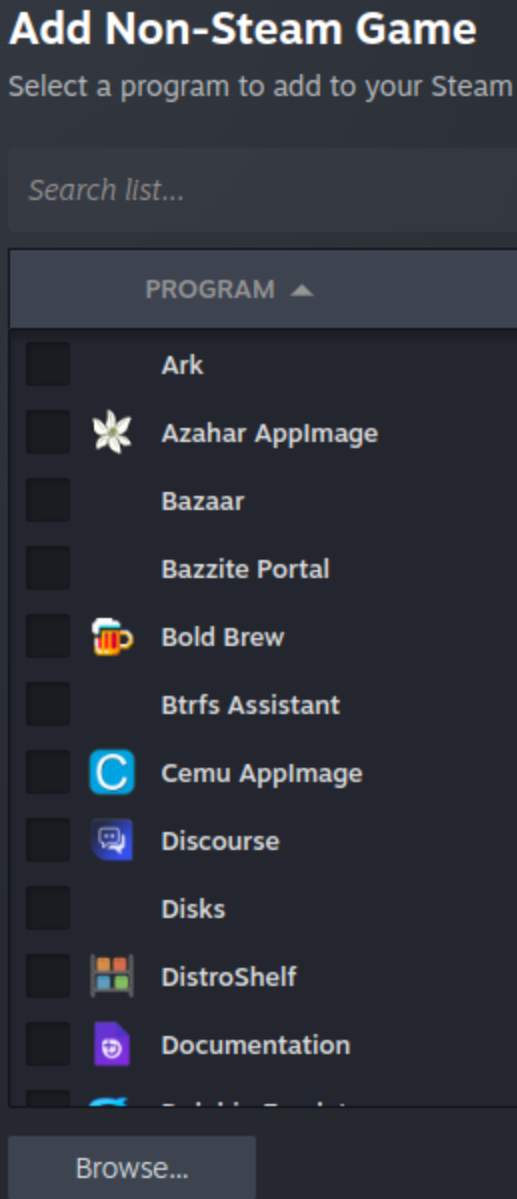
Go to the top menu: Add a Game -> Add a Non-Steam Game...


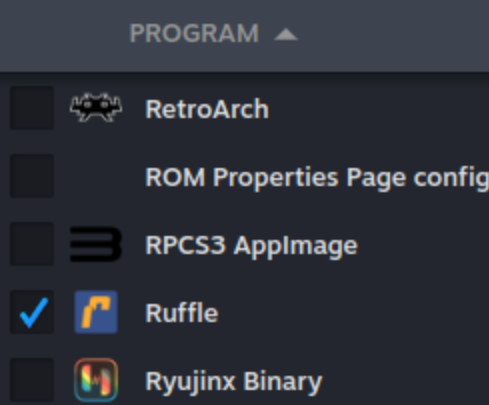
Find Ruffle in the list and check the box.


Click Add Selected Programs.


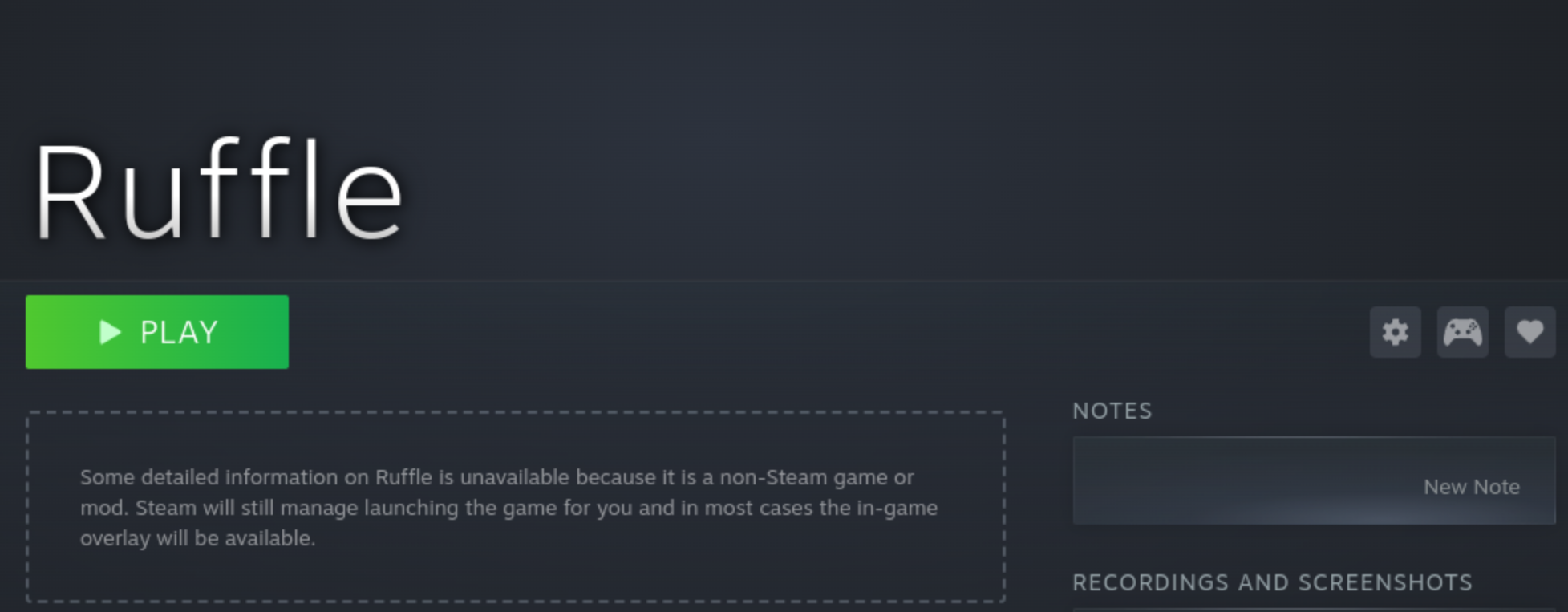
Now, find "Ruffle" in your Steam Library list on the left.


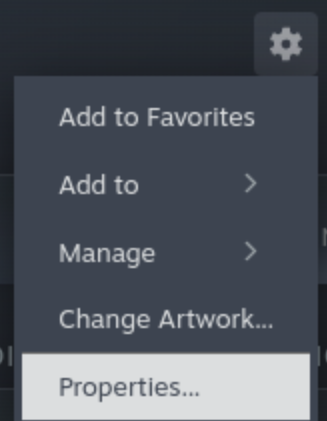
Right-click "Ruffle" -> Properties.


Look at Launch Options. You will see some code like "run" "--branch=stable" "--arch=x86_64" "--command=ruffle" "--file-forwarding" "rs.ruffle.Ruffle" "@@u" "@@" . DO NOT DELETE THIS!


Click at the very end of that line, add a Space, and then paste your game path inside Quotes " ".

It should look exactly like this:

"run" "--branch=stable" "--arch=x86_64" "--command=ruffle" "--file-forwarding" "rs.ruffle.Ruffle" "@@u" "@@" "/home/deck/Emulation/roms/Flash/Cactus McCoy.swf"


Final Polish:

Shortcut Name: Change "Ruffle" to the actual game name (e.g., "Cactus McCoy").

Icon: You can right-click the empty square icon to add custom artwork if you want it to look pretty in Game Mode! :D


Step 5: Adding More Games (Important!)
Once you add your first game, you might notice that Ruffle disappears from the "Add Non-Steam Game" list. Don't panic! Here is the trick to add the rest of your library:

Go to Add a Game -> Add a Non-Steam Game.


Click Browse... and find the .swf file of the NEW game you want to add.


Select it and click Add Selected Programs.


Now, go to the Properties of your FIRST game (the one that is already working).


Copy the text from these three fields:
  • Target
  • Start In
  • Launch Options

Go to the Properties of your NEW game.

Paste the text into those same fields.

The Only Change:
In the Launch Options of the new game, simply delete the old path inside the quotes "" and paste the path of your NEW game.

Repeat this for every game you want to add! :D
Step 6: Controller Mapping (Steam Input)
Flash games were made for Keyboards. Your Deck/Legion Go is a controller. Let's bridge the gap!

Important Check:
Before mapping, launch the game and look for an "Instructions" or "Controls" button in the main menu. This will tell you exactly which keys (Space, Z, A, S, etc.) you need to map!


Return to Game Mode.

Launch your new game.

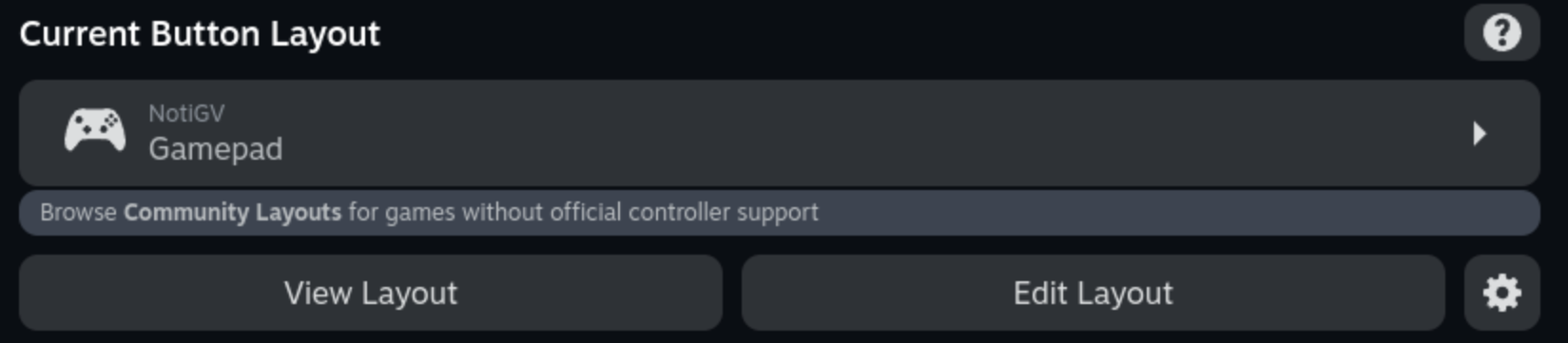
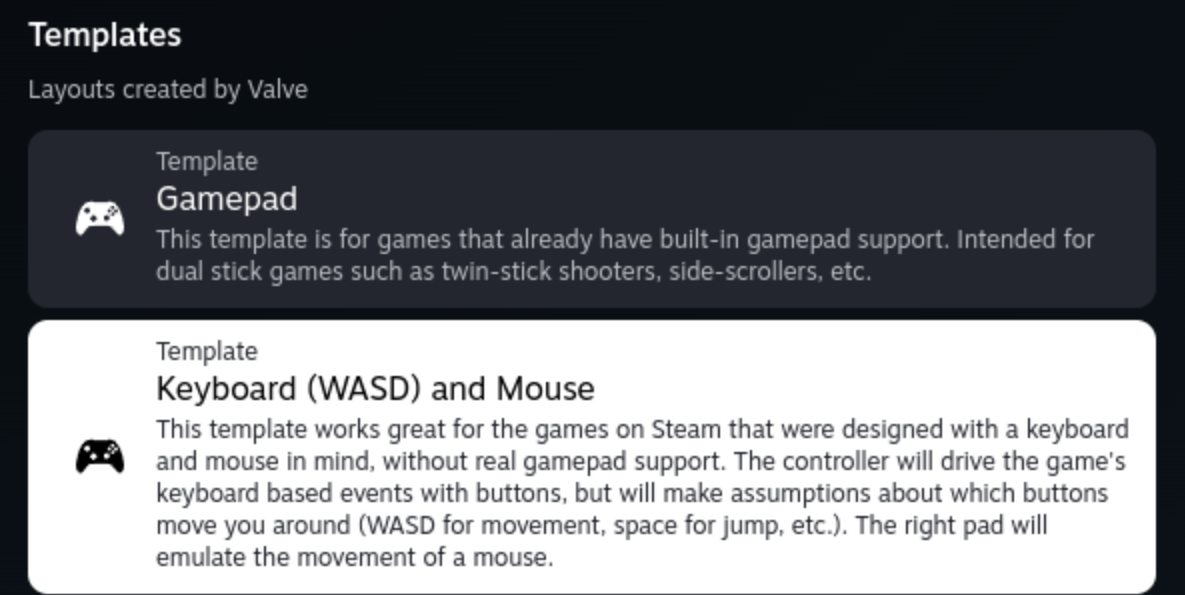
Press the Steam Button (or generic "Guide" button) -> Controller Settings.


Click Edit Layout.


Map the buttons to standard Flash controls:

D-Pad / Left Stick: Map to Arrow Keys (Up, Down, Left, Right).

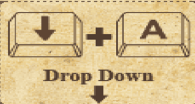
A Button: Map to Spacebar, Z, or A (depending on what you saw in the instructions).

Right Trackpad / Stick: Map as Mouse (for menu navigation).

Right Trigger (R2): Map as Left Mouse Click.

Save the layout, and you are good to go!
Author's Note :D
That's it! You can now play thousands of web classics offline, directly from your Bazzite or Steam Deck interface.

I highly recommend checking out the "Flashpoint" project if you want a massive curated library, but this method is perfect for adding just your specific favorites to your Steam wheel.

What was your favorite Flash game growing up? Let me know in the comments! For me, it was definitely Fancy Pants Adventure.

Hope this helps!! :D

Disclaimer & Credits:
This technical guide was written and formatted by ThatGVguy for educational purposes and to promote the digital preservation of classic web games.

Asset & Property Rights: All Flash games characters, and original intellectual properties mentioned (such as Alien Hominid, Fancy Pants, etc.) belong to their respective original creators and studios. This guide does not host, provide or directly distribute .swf files. The Internet Archive (archive.org) is referenced strictly as a public digital library.

Credits: A massive thank you to the volunteer developers behind the open-source Ruffle emulator and the Flashpoint Archive project for their incredible work in saving web gaming history from disappearing forever.

Editing Process: Digital creation and language assistance tools were utilized during the final proofreading of this guide to ensure clear, concise, and accurate technical instructions.

Keep the Flash era alive! :D
- ThatGVguy :D